

· Updated
Run Stable Diffusion Locally with Easy Diffusion (2026)

SEO consultant & Google Ads specialist
Easy Diffusion is a free, open-source app for generating AI images locally, on your own computer. It was originally built to run Stable Diffusion only, but since version 3.0.16 (March 2026), newer and arguably more competent open models like Flux 2 Klein and Z-Image are also available. There are no credits to run out of, no monthly fee and no limit on how many images you make. The whole thing works offline once a model is downloaded.
As the name suggests, it’s one of the easiest ways to get started. On Windows, you don’t need to know Python or use the command line, but there are still plenty of settings to experiment with.
This guide was first published in March 2024 and has been rewritten for Easy Diffusion 3.0.16 and its new v4 engine (October 2026).
Why generate images locally?
The truth is that ChatGPT, Gemini, Midjourney and many other online tools usually produce far better images than models capable of running on an average PC or Mac. Much like running a local LLM, it’s a fun experiment and learning experience. There are some other advantages:
- Cost: Free and unlimited. The only cost is hardware and electricity.
- Privacy: Your prompts and experimental images never leave your computer.
- Control: You pick the model, the sampler, the number of steps and the seed, and can swap models whenever you want.
- Fewer restrictions: No content filter decides what you can and can’t do (but as always, think about what you publish).
The downside, other than the fact that open models don’t match the best commercial ones, is that local image generation requires a fairly powerful computer.
Easy Diffusion system requirements
| Windows | Mac | Linux | |
|---|---|---|---|
| GPU | Nvidia or AMD, at least 2 GB VRAM | Apple Silicon (M1 or newer) or AMD (Intel Mac) | Nvidia or AMD (ROCm 5.2+), at least 2 GB VRAM |
| RAM | 8 GB minimum | 8 GB minimum | 8 GB minimum |
| Disk space | 25 GB or more | 25 GB or more | 25 GB or more |
Source: Easy Diffusion on GitHub, October 2026.
Consider these the absolute minimum specs for getting the app running reasonably well (with older, smaller models).
In practice, the amount of VRAM (graphics memory) decides which models you can use and how fast they are. Nvidia cards are still the safest choice, but the new v4 engine (see below) also makes AMD and Intel graphics, including integrated GPUs, work much better.
How much VRAM do you need?
| Model | VRAM (approx.) |
|---|---|
| Stable Diffusion 1.5 | 4 GB |
| Stable Diffusion XL (SDXL) | 8 GB, 6 GB with memory optimisations |
| Flux 2 Klein 4B | 8–13 GB, less with a quantised (GGUF) version |
| Z-Image Turbo | 16 GB, less with a quantised version |
The figures should be treated as a rough guide. Quantised versions (often GGUF files) are compressed copies of a model that use less memory at the cost of slightly lower quality, much like quantised language models in LM Studio.
On a Mac with Apple Silicon (M1 and later), the GPU shares memory with the rest of the system. A Mac with 16 GB of RAM handles SDXL, but more memory is needed for the larger models.
Can you run Stable Diffusion without a GPU?
Yes, Easy Diffusion can run on the CPU alone but it’ll be very slow. A single image can take several minutes.
Installing Easy Diffusion
Download the installer for your operating system from the Easy Diffusion GitHub page. Only download it from there, not from third-party download sites.
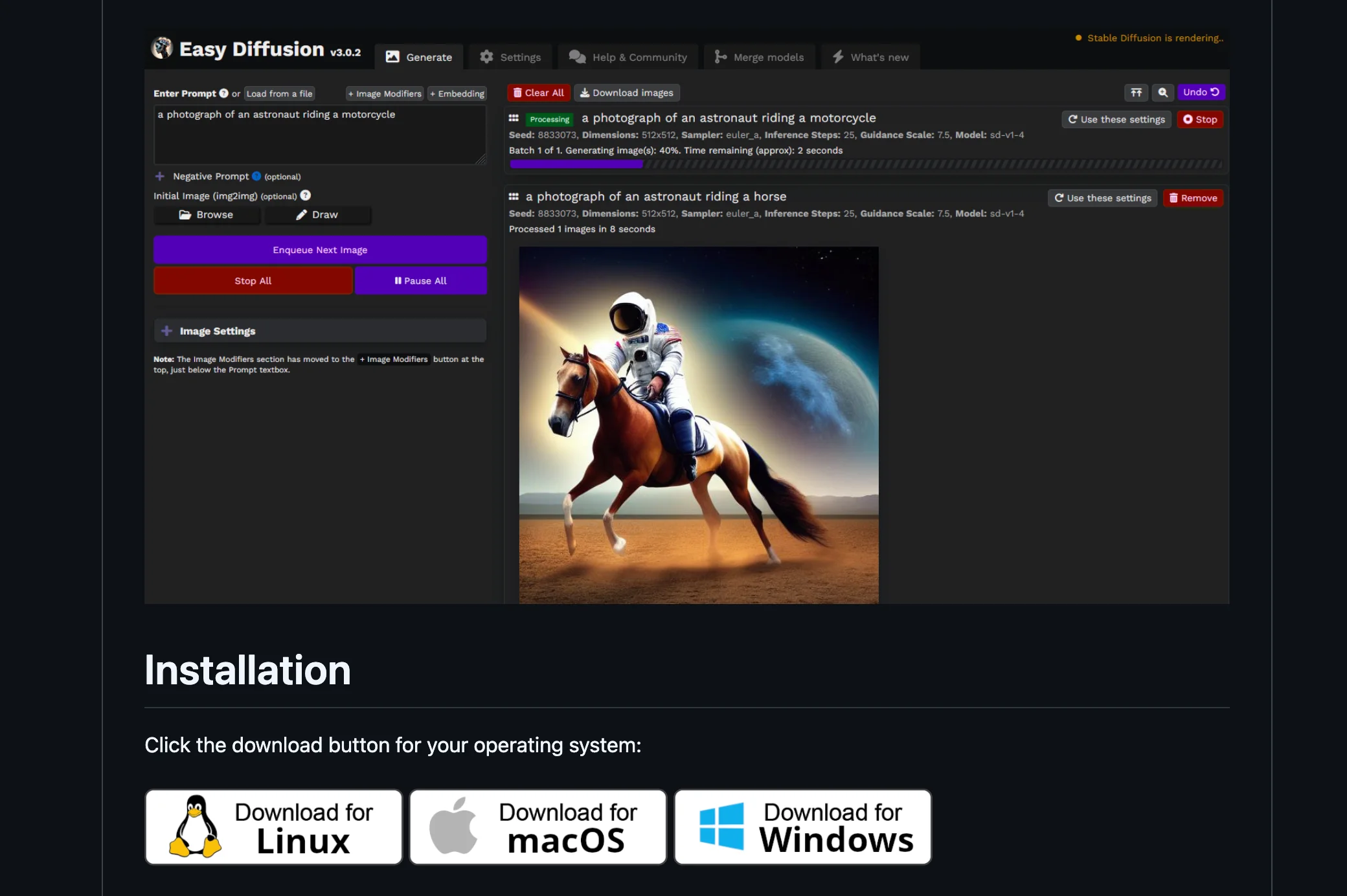
Windows
- Run
Easy-Diffusion-Windows.exe. - Install to a folder at the top level of the drive, for example
C:\EasyDiffusion. On Windows 10, a longer path can cause errors because of file path length limits. - If Windows SmartScreen blocks the installer, click More info and then Run anyway.
- Start Easy Diffusion from the Start menu or the desktop shortcut.
Mac and Linux
Installing on Mac or Linux is a nearly identical process, and requires a few terminal commands.
- Unzip the file you just downloaded. Then you probably want to move the
easy-diffusionfolder to a more permanent location than Downloads, because everything Easy Diffusion downloads later (including models of several gigabytes) ends up in that folder. - Open the folder in Terminal. On a Mac, the quickest way is to right-click the folder in Finder and choose Services > New Terminal at Folder.
- Type
./start.shand press Enter. The first time, the script downloads everything Easy Diffusion needs, which takes a while. - When it’s done, Easy Diffusion opens in your web browser.
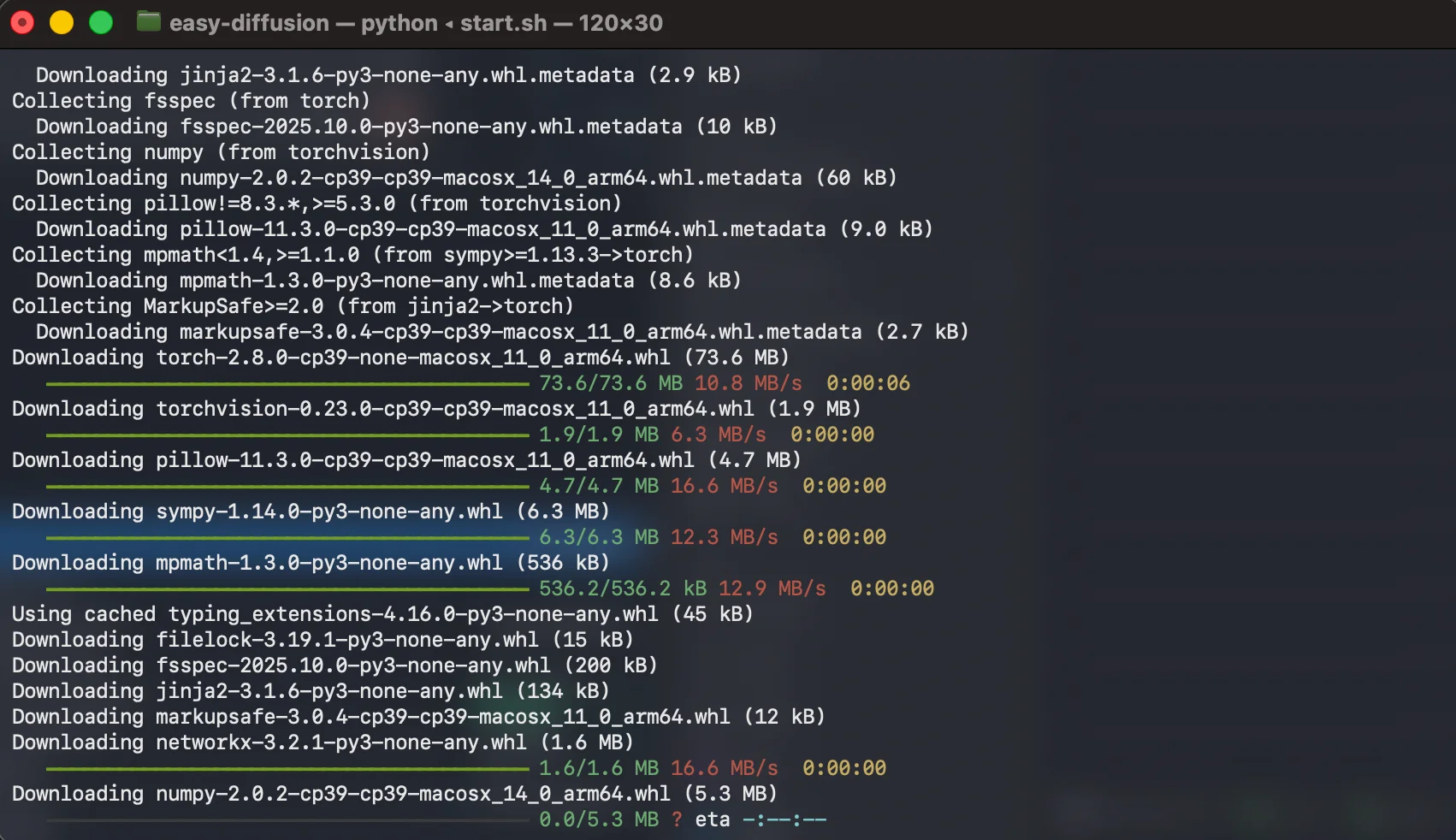
To start Easy Diffusion again later, run ./start.sh again, in the same folder. Nothing is downloaded a second time.
To uninstall, delete the Easy Diffusion folder. Everything, including models and generated images, is in that folder unless you’ve changed where images are saved.
Generating your first image
Easy Diffusion runs in your browser at http://localhost:9000, but everything happens on your own computer. Type a description of the image in the prompt field and click Make Image. You can queue several prompts without waiting for the first one to finish, and you get a preview of the image while it’s being generated.
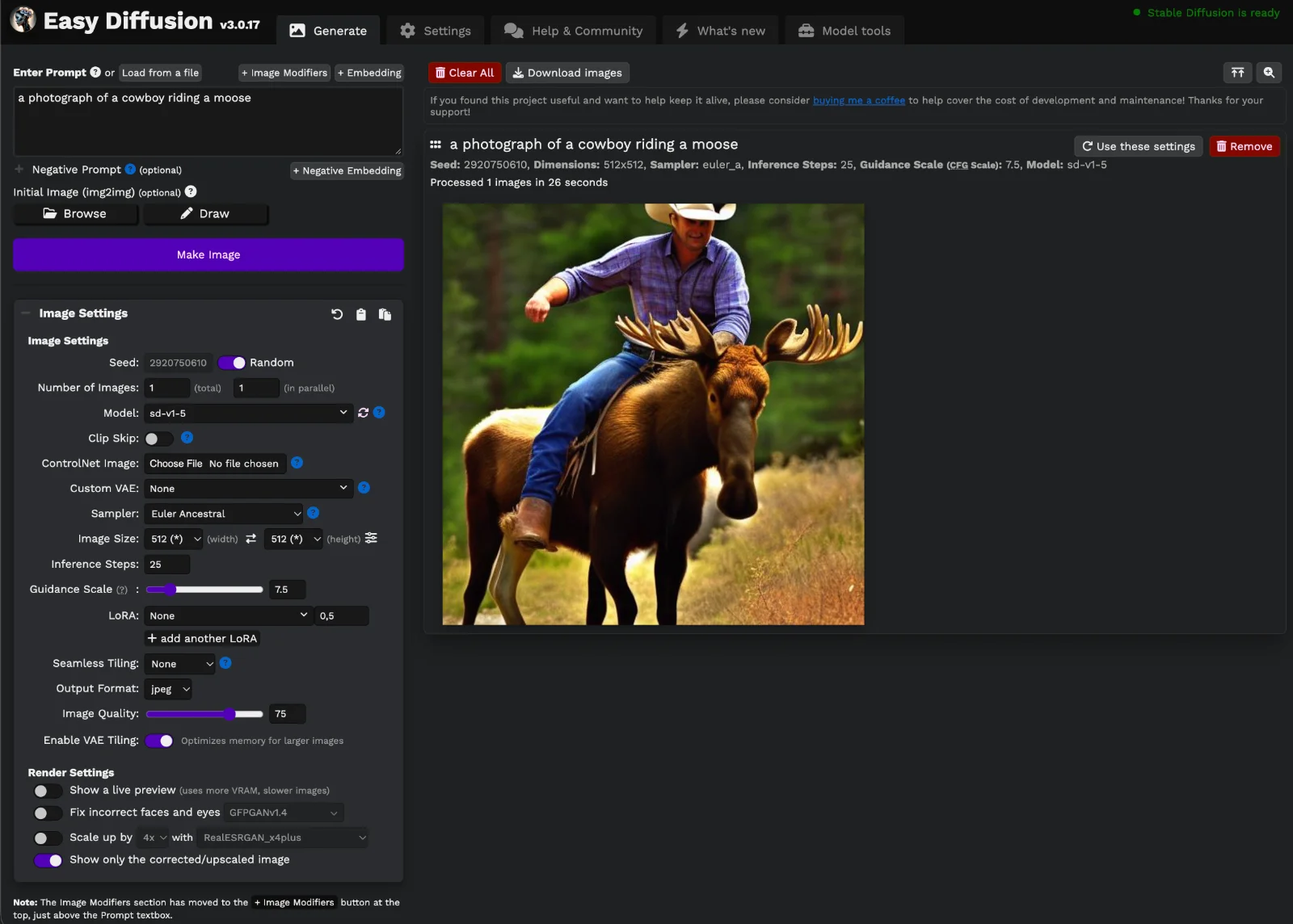
The version number in the app may be higher than the one you downloaded, because Easy Diffusion updates itself when it starts.
A few things worth knowing:
- Negative prompt: Describe what you don’t want in the image, for example “blurry, text, watermark”.
- Image modifiers: A library of ready-made style tags like “Realistic”, “Pencil Sketch” or “Cinematic” that are added to your prompt. A quick way to try different styles.
- Image to image: Upload a picture as a starting point instead of starting from noise. Inpainting lets you redo only part of an image.
- Seed: The number that decides the starting noise. Reuse the same seed and settings to get the same image again, or change one setting at a time to see what it does.
The v4 engine: Flux 2, Z-Image and more
Easy Diffusion 3.0.16 comes with a new image engine called v4, which will be the default starting with Easy Diffusion 4. It’s built on stable-diffusion.cpp instead of PyTorch, and adds support for newer models: Flux 1 and 2, Z-Image, Qwen, Lumina and quantised GGUF models. It also uses Vulkan, which is much better for everyone with an AMD or Intel GPU (including older AMD cards).
At the time of writing, the v4 engine isn’t on by default. To turn it on:
- Open the Settings tab.
- Choose v4 engine under Backend.
- Click Save and restart Easy Diffusion.
If it doesn’t start, the Easy Diffusion Discord is the place to ask. Copy the complete log from the terminal window and include it in your post.
Easy Diffusion’s release notes don’t mention macOS for the v4 engine, and I haven’t tested it on Apple Silicon. If it doesn’t work on your Mac, the regular engine still runs Stable Diffusion 1.5 and SDXL, and Draw Things is a good alternative for newer models.
Adding more models
Easy Diffusion comes with a Stable Diffusion model, but the real fun starts when you try others. Model files end in .safetensors (or the older format .ckpt), and quantised models in .gguf. Put them in this folder:
- Windows:
C:\EasyDiffusion\models\stable-diffusion(if you installed toC:\EasyDiffusion) - Mac and Linux:
easy-diffusion/models/stable-diffusionin the folder where you unzipped Easy Diffusion
You can create subfolders to keep things organised. Click the refresh button next to the model list, and the new model shows up in the drop-down menu (which is searchable).
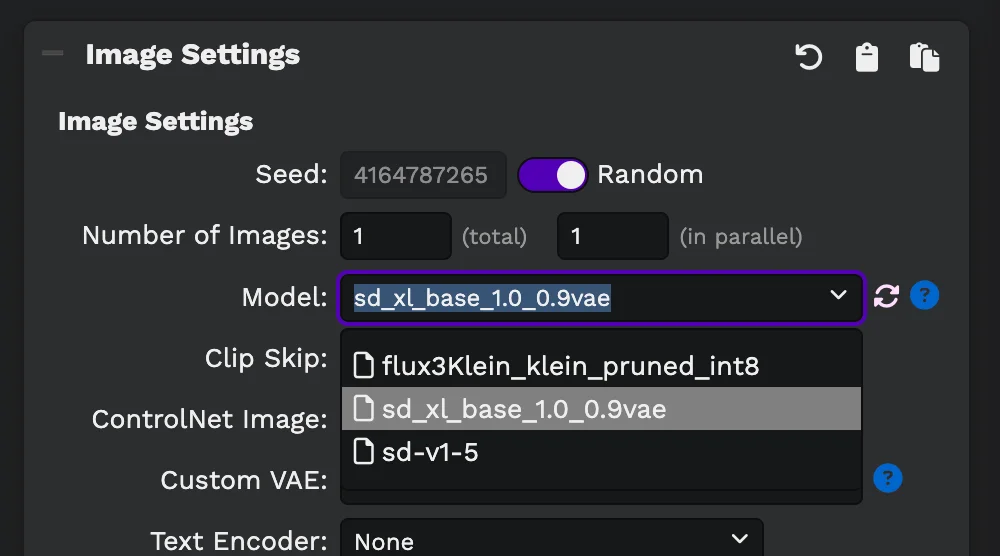
Most models are on Hugging Face and Civitai. A few to start with:
- SDXL-based models if you have at least 8 GB of VRAM. There are thousands of variants trained for specific styles.
- Flux 2 Klein 4B from Black Forest Labs if you have 8–12 GB or more. It’s fast (generates in a few steps) and much better than SDXL at following complex prompts.
- Z-Image Turbo from Alibaba if you have 16 GB. High image quality at only around eight steps.
Check the licence if you’re going to use the images commercially. Flux 2 Klein 4B and Z-Image Turbo are released under Apache 2.0, which allows commercial use. Flux 2 Klein 9B, on the other hand, is licensed for non-commercial use only. Many models on Civitai have their own terms.
Settings and inference steps
The default settings will not necessarily result in mind-blowing works of art, but Easy Diffusion gives you more control than most commercial web tools.
The two settings that matter most (besides the model) are the sampler and the number of inference steps. Stable Diffusion starts with what looks like random noise and refines it step by step. The time it takes increases linearly with the number of steps. The quality doesn’t.

The example above shows the same prompt at 25, 50 and 75 steps. The difference in the upper range (between 50 and 100 steps, for example) is rarely substantial. Use fewer steps to try out ideas and add more to refine an image you’re happy with.
This applies to classic Stable Diffusion models. Newer, distilled models like Flux 2 Klein and Z-Image Turbo are trained to produce a finished image in 4–8 steps. Giving them 50 steps just makes generation slower, so follow the recommendation on the model’s download page.
The Easy Diffusion wiki has a short explanation of the samplers. Euler and DPM++ 2M are good defaults.
Is Easy Diffusion safe?
Yes. Easy Diffusion is open source, has been developed on GitHub since 2022 and runs entirely on your own computer. As long as you download it from the official GitHub page, it’s as safe as other open-source software.
The bigger risk is the model files. The older .ckpt format can contain code that runs when the file is loaded. Stick to .safetensors (and .gguf) files, which only contain model data – and download only from sources you trust.
Can LM Studio run Stable Diffusion?
No. LM Studio runs language models (LLMs), including vision models that can read and describe images, but it can’t generate images. To run Stable Diffusion or Flux locally, you need a separate tool like Easy Diffusion.
Alternatives to Easy Diffusion
Easy Diffusion is a good place to start, but not the only option. These are the main alternatives in 2026:
| Tool | Best for | Platforms |
|---|---|---|
| ComfyUI | Maximum control with node-based workflows. Usually the first to support new models, but it has a steep learning curve. | Windows, Mac, Linux (desktop app available) |
| Stability Matrix | Installing and switching between several interfaces (ComfyUI, Forge and others) with a shared model folder. | Windows, Mac, Linux |
| InvokeAI | A polished interface with a canvas for editing and inpainting. | Windows, Mac, Linux |
| Draw Things | Mac, iPhone and iPad users who want a native app. | macOS, iOS |
| Forge Neo | Those who want the classic Automatic1111 interface with support for newer models. Continues the original Forge. | Windows (Linux and Mac with manual setup) |
If you outgrow Easy Diffusion, ComfyUI is the natural next step. Automatic1111 and the original Forge, which many older guides recommend, have barely been updated since 2025.
Summary
Easy Diffusion is still one of the easiest ways to run Stable Diffusion locally. With the v4 engine, it also runs the newer models that have replaced Stable Diffusion for many use cases. What decides how well it works is your graphics card, or on a Mac, how much memory you have. With 8 GB of VRAM you can run SDXL and Flux 2 Klein.